Security
The $470 Million Text Scam
The five smishing scams stealing millions in 2026 — and the 3-second check that stops every one.
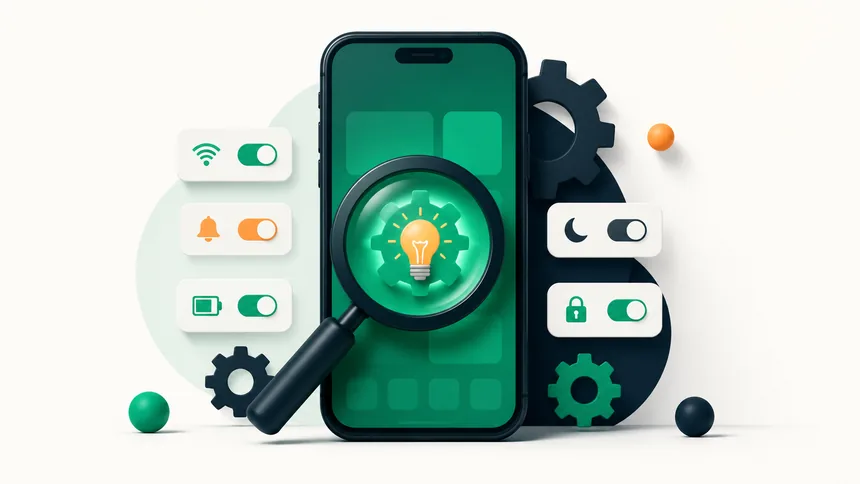
Most people use a fraction of what their iPhone can do — like owning a sports car and never leaving first gear. Apple buries some of its most useful features deep in Settings, where they go unnoticed for years. Here are nine of the best hidden settings that quietly save time every single day. Try one or two today and see which becomes a habit.
Double- or triple-tapping the back of your iPhone can trigger almost anything — a screenshot, the flashlight, the camera, or a custom shortcut. Go to Settings → Accessibility → Touch → Back Tap and assign an action. It quickly becomes the fastest screenshot you've ever taken.
You don't need a scanner app. Open Notes, tap the camera icon, and choose Scan Documents. The camera finds the edges, straightens the page, and saves a clean PDF you can sign and share. Perfect for receipts, forms, and contracts.
Low on storage? Turn on Settings → App Store → Offload Unused Apps. Your iPhone removes apps you never open while keeping their data and icon — tap once and the app reinstalls right where you left off. To see what's eating space, check Settings → General → iPhone Storage.
Phones keep getting taller. Reachability slides the whole screen down so your thumb can reach the top. Enable it in Settings → Accessibility → Touch → Reachability, then swipe down on the bottom edge. A lifesaver on the couch or holding a coffee.
Tired of typing your email or address over and over? In Settings → General → Keyboard → Text Replacement, create shortcuts — type "@@" and have it expand into your full email. Great for phone numbers, addresses, and phrases you send constantly.
If Live Photos is on, you can fake a professional long-exposure shot. Open a Live Photo (ideally with water, car lights, or motion), tap the Live badge at the top left, and choose Long Exposure. Waterfalls turn silky and night traffic becomes light trails — no tripod required.
Drowning in spam calls? Turn on Settings → Apps → Phone → Silence Unknown Callers. Numbers not in your contacts go straight to voicemail without ringing, so you still get the message but skip the interruption.
The Photos app has a Hidden album that you can lock behind Face ID. Select a photo, tap the share or "…" menu, and choose Hide. In Settings → Apps → Photos, keep "Use Face ID" on so the Hidden and Recently Deleted albums stay private.
This one could matter most. Set up your Medical ID in the Health app with allergies, medications, and an emergency contact — first responders can view it from your lock screen. Learn how Emergency SOS works too, so a few button presses can call for help and alert your contacts with your location.
You don't need a new phone to make your iPhone feel new — you just need to know where Apple hid the good stuff. Start with Back Tap and document scanning; they're the two most people wish they'd found years ago. Share this with a friend who's still using their phone on "beginner mode."
Want your phone running faster too? Don't miss our guide to spotting the scam texts targeting phone users everywhere.
Most work on any iPhone running a recent version of iOS. A few features depend on your model and software version, so update to the latest iOS to see them all.
Go to Settings → Accessibility → Touch → Back Tap, then choose an action for a double or triple tap.
No. These are standard built-in settings and have no meaningful impact on battery life.
The five smishing scams stealing millions in 2026 — and the 3-second check that stops every one.
Criminals can clone a loved one's voice from seconds of audio. Here's how to protect your family.
7 fast checks to tell a scam shop from a real one — before you ever enter your card details.