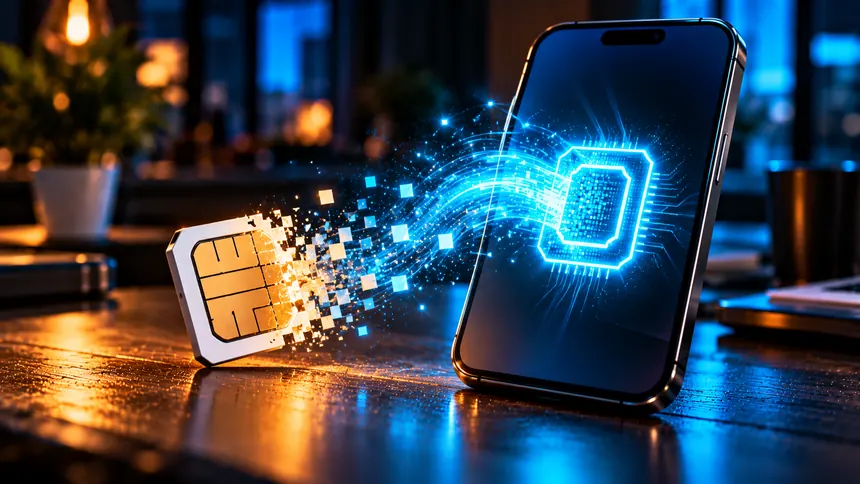
An eSIM is a digital SIM built into your phone, so you add a mobile plan by scanning a QR code or tapping a prompt from your carrier instead of inserting a plastic card. It is the same kind of plan you would put on a physical SIM; only the way it reaches the phone changes. An eSIM is worth it if you travel, want two numbers on one phone, or want to skip shipping and swapping cards, and it matters less if you change phones often.
What an eSIM is and how it works
Apple describes an eSIM as a digital SIM that lets you activate a cellular plan from your carrier without a physical SIM, and says it is more secure than a physical one because it cannot be removed if your phone is lost or stolen. Your carrier gives you the plan as a QR code, an app prompt, a link or activation details, and the phone stores it.
On an iPhone, Dual SIM gives you two active numbers, and the phone uses one cellular data connection at a time, so you choose which line carries data. An eSIM is not cheaper by itself: it changes how a plan is delivered, not what it costs, so compare the actual plans if saving money is the goal.
eSIM or physical SIM: which fits your situation
| Your situation | Better fit | What to check |
|---|---|---|
| You travel abroad and want local data | eSIM | The phone must be unlocked, and your carrier or the travel provider must support eSIM. |
| You want a personal and a work number on one phone | eSIM plus a physical SIM (Dual SIM) | Apple says plans from two different carriers need an unlocked iPhone, or both plans must come from the same carrier. |
| You swap phones often | Physical SIM may be simpler | An eSIM has to be transferred, and it cannot be pulled out and tested in another phone. |
| Your phone is tied to a carrier | Unlock it first | On an iPhone, Settings > General > About shows "No SIM Restrictions" next to Carrier Lock when it is unlocked. |
Does your phone support eSIM?
Two things must be true: the phone has an eSIM, and your carrier offers eSIM plans for that model. Apple lists the iPhone XS, XS Max, XR and later, with differences for models sold in mainland China, Hong Kong and Macao. Google's convert-to-eSIM feature needs a Pixel 7 or later. Samsung says only some Galaxy phones include an eSIM, and some carriers may not support it on your device yet. If you are unsure, ask your carrier about your exact model before buying a plan.
How to set up an eSIM, step by step
Get the activation from your carrier first: a QR code, a prompt in its app, a link or manual details. You need an internet connection during setup; Apple says an iPhone needs Wi-Fi or a hotspot, apart from some eSIM-only models in certain regions. Menu names come from the manufacturers' help pages and can differ by software version.
iPhone
- During setup, tap Use QR code on the Set Up Cellular screen. After setup, scan the code with the Camera app and tap the Cellular Plan Detected notification. For a carrier link or app, follow Apple's eSIM setup guide.
- Tap Continue, then Add Cellular Plan, and enter the confirmation code if asked. Expected result: the new line appears under Settings > Cellular.
- Label it (tap the number, then Cellular Plan Label) and choose the data line under Settings > Cellular > Cellular Data.
Moving from an older iPhone? If your carrier supports it, eSIM Quick Transfer moves your number without contacting the carrier. Both iPhones need iOS 18.4 or later and the same Apple Account, and the old one must be unlocked and nearby with Bluetooth on. Go to Settings > Cellular > Set Up Cellular (or Add eSIM) > Transfer From Nearby iPhone.
Google Pixel
- Open Settings > Network & internet > SIMs.
- To turn a physical SIM into an eSIM, select it and tap Convert to eSIM. Google warns that the physical SIM stops working afterward, so keep it until the eSIM works.
- To move a line from another phone, choose Add SIM, then Transfer SIM from another device. Both phones need Android 12 or later, current Google Play services and a screen lock.
Samsung Galaxy
Open Settings > Connections > SIM manager > Add eSIM, choose Scan QR code and scan your carrier's code, then restart the phone.
Before you remove an old physical SIM, make a call, send a text and load a web page on mobile data to confirm the new line works.
Using an eSIM when you travel: a checklist
Travel is where an eSIM helps most, because you can add a local or regional data plan without looking for a store. Apple's guide to using eSIM while traveling internationally covers these points:
- Your current plan first. Check whether your home plan includes roaming at your destination at no extra charge, or whether your carrier sells a travel pass.
- Buy from a local carrier or a worldwide data provider, before you leave or after you arrive. Some plans include a local number, and local rules may require ID such as a passport.
- Install over Wi-Fi, then pick the travel line for data. If you let both lines carry data, your home line may still incur roaming fees.
- Switch back at home. If the phone does not do it automatically, go to Settings > Cellular, turn on your main line and turn off travel lines you no longer use.
Downsides to know before you switch
- Changing phones takes a step. Quick Transfer needs the old iPhone, and the other methods come from your carrier. When you move to a new phone, handle the eSIM before you wipe the old one.
- Converting is a one-way step on a Pixel. A new physical SIM has to come from your carrier.
- Support varies by carrier and model. Samsung says its dual SIM options are not available on carrier-locked devices.
- No physical swap. If the old phone is lost or dead, you will be working through your carrier.
eSIM and phone number security
The FCC notes that eSIMs are built into newer phones and cannot be physically removed, which lowers the risk of a stolen SIM. Port-out scams remain a concern: scammers trick the carrier into moving your number to a device they control and then use it to reset passwords. The FCC also advises wiping eSIM data when you replace a phone.
The FTC calls this a SIM swap scam and recommends:
- Set a PIN or password on your cellular account.
- For sensitive accounts, use an authentication app or security key instead of text-message codes, which may not stop a SIM swap.
- Ignore unsolicited requests for personal information, and contact companies using a number or website you know is genuine. The same habits help against scams on WhatsApp.
- If your number is taken, contact your carrier immediately, change your account passwords and check your bank and card accounts for unauthorized charges. If a scammer has your Social Security, card or bank account number, IdentityTheft.gov lists the next steps.
Sources and what to recheck: this guide draws on Apple, Google and Samsung support pages, the FTC and the FCC (listed below). Supported models, menu names and carrier rules change with software updates, so confirm them on your phone maker's current help page and with your carrier before you buy a plan or remove a SIM.
Frequently asked questions
Is an eSIM better than a physical SIM?
It depends on how you use your phone. An eSIM is easier to add, cannot be pulled from a lost phone and works well for travel or a second number. A physical SIM is simpler if you swap phones often. The plans come from the same carriers either way.
Can I use an eSIM and a physical SIM at the same time?
On many phones, yes. Apple's Dual SIM lets an iPhone use a physical SIM and an eSIM together, with one cellular data connection active at a time. For plans from two different carriers, the iPhone must be unlocked, or both plans must come from the same carrier.
How do I know if my phone supports eSIM?
Check your phone maker's eSIM page and ask your carrier whether your exact model and plan are supported. Apple lists the iPhone XS, XS Max, XR and later. Samsung describes the path as Settings, Connections, SIM manager, Add eSIM, but only some Galaxy models include an eSIM.
Sources: Apple Support: Set up eSIM on iPhone · Apple Support: Use eSIM while traveling internationally with your iPhone · Apple Support: Using Dual SIM with an eSIM · Apple Support: eSIM overview · Pixel Phone Help: Convert a physical SIM to an eSIM · Pixel Phone Help: Transfer a SIM to a new phone · Samsung Support: SIM cards for your Galaxy phone or tablet · FTC Consumer Advice: SIM swap scams: how to protect yourself · FCC: Cell phone fraud